Choose a room, then review its clashes
Select a room to inspect its volume. Choose Review this space when you want to narrow the worklist. The building, level and room context can follow the clashes into filters, reports, sessions and Wise.
 ClashWise
Model viewer
Move between the building, its floor plan and the two elements in a clash. Inspect IFC properties, keep the surrounding models in view and save the context for your next review.
No account. The IFC stays in the current browser tab and is not uploaded.
Try the model viewer
Explore Northbank, an illustrative office model with example IFC data and published clashes.


Drag to orbit · Scroll the page · + / − to zoom.
Saved views and measurements shown here stay in this example.
 Navisworks coordination
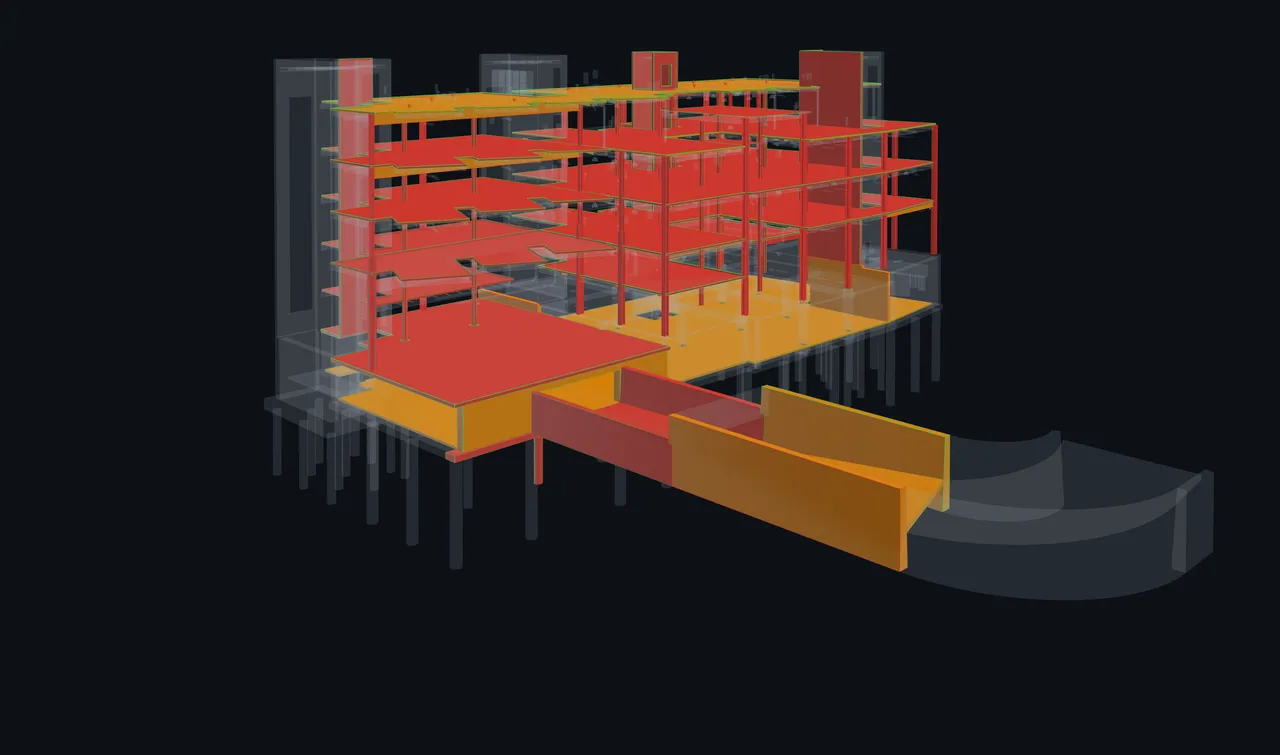
Switch between 3D and Plan, choose a building and level, then use room outlines, labels, grids and clash pins to find the work. In 3D, floors stay at their actual elevations.
Select a room to inspect its volume. Choose Review this space when you want to narrow the worklist. The building, level and room context can follow the clashes into filters, reports, sessions and Wise.
Plan and room review need a prepared, aligned IFC source designated Rooms & levels. The plan uses a 1.2 m cut. Approximate locations remain identified, and geometry-only models do not provide room definitions.
Turn on element inspection and select visible geometry. Read attributes, spatial hierarchy, type, property sets, quantities and materials, with units and the distinction between instance and type values. Inspection is read-only.
Retain supported colours, material boundaries and transparency. Switch between source appearance and Ghost/X-ray as you inspect the issue, then restore the view. Hidden or clipped elements cannot be picked.
Filter by model or IFC class, or search by name, GlobalId or express ID. Hide one element or all matching elements, then restore them or reset visibility. These controls change the current viewer; they are separate from saved clash filters and the Navisworks Search Sets workshop.
Name a view with its camera, projection, clipping, filters, sort, selection, visibility, appearance and spatial location. Reopen it against the latest published model, with warnings when geometry has changed or gone missing.
Save endpoints on the source geometry, distance, axis deltas, units and a note. Reopen, edit or delete the measurement. Review it after a model revision; a viewer measurement is not a survey certificate.
Keep a personal queue and your place in it across refreshes and devices. Refresh the tour when you want to include new clashes. Skipping a clash leaves it unreviewed.
Choose the form of collaboration that fits the review.
In a coordination session, the host can keep connected participants on the same camera, projection, context, clipping, visibility, colours and spatial state. Each participant receives only authorised content.
Explore host presentation in coordination sessionsShared markup freezes the current rendered view so participants can draw on the same image. Save the flattened marked-up image to the session record; its individual shapes do not stay editable or move with the model while you orbit.
Persistent annotation pins retain their 3D model context for later review. Use them when the note needs to remain attached to a model location rather than capture one live discussion on a frozen image.
Search, filter and navigate a whole-set worklist of up to 50,000 clashes while the viewer loads the geometry needed for the current review. Clashes without geometry remain in the list. Public 3D shares have a separate limit of 150 clashes.
Bring a room-focused worklist into a coordination session. For a member BCF review package, choose published, current or saved viewpoints and the annotations, measurements, clipping, visibility and snapshots you want to include. Check the receiving tool’s support for that package.
ClashWise supports IFC2x3, IFC4 and IFC4.3 ADD2 in the .ifc STEP format. IFCZIP, IFCXML and IFC JSON are not currently supported.
You can review authorised published data and model context in the browser. Navisworks Manage runs the clash tests and publishes their results through the plug-in. Design changes stay in your authoring tools.
Model access follows your workspace permissions and subscription. Organisation uploads require Business when subscription enforcement applies. Personal uploads and campaign access can follow different rules. Check your account’s upload allowance; viewing access is a separate permission.
Saved views restore review settings against the latest published model. They do not replay historical geometry. Check warnings about changed or missing elements before reusing a measurement or sharing the view.
Start the trial, publish a clash set and bring the model context your team needs into the browser.